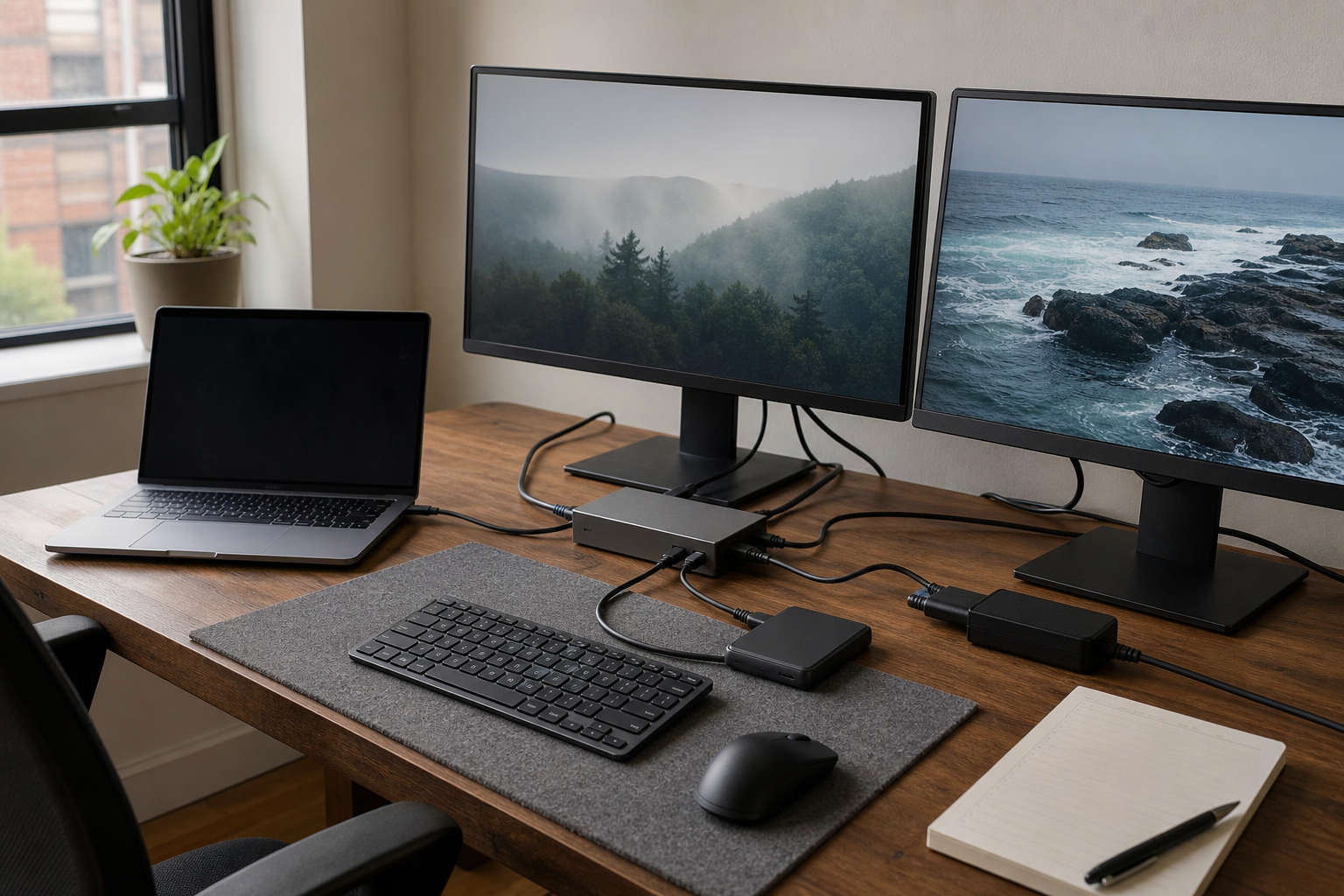
A dock can make a desk feel simpler: one cable reaches the laptop, then the display, charger, Ethernet, storage, and input devices are ready. The compatibility work happens before that cable is connected.
Begin with the laptop’s exact model, not the dock’s port count. The laptop decides what its host port can carry and how many external displays it can drive natively. From there, the right dock class becomes much easier to see: a high-bandwidth Thunderbolt 5 dock, a conventional Thunderbolt 4 or USB4 dock, a software-assisted DisplayLink dock, or a small hub and one direct display cable.
The same USB-C shape can lead to a very different desk
USB-C describes the connector, not a complete list of data, display, and charging capabilities. USB-IF’s USB4 overview describes a connection that shares data and display protocols and then operates at the best mutual capability of the connected equipment. That is a useful way to read every dock claim: the laptop, cable, dock, display, and peripheral each contribute a limit.
Thunderbolt’s technology overview places Thunderbolt 4 at 40 Gbps and Thunderbolt 5 at 80 Gbps bidirectional, with up to 120 Gbps available for its bandwidth-boosted display direction. The exact laptop specification tells you which of those capabilities reaches the host port on your desk.
Before comparing products, make one record for the computer you will actually dock:
| Record this first | Where to find it | What it decides |
|---|---|---|
| Exact laptop model and chip or processor | The manufacturer's support or technical-specification page | Native display limits, supported host protocols, and required power. |
| Operating-system version | System settings | Dock driver, firmware, and DisplayLink support. |
| Host-port capability | The exact model's port specification | Whether Thunderbolt 5, Thunderbolt 4, USB4, USB-C video, or charging is available. |
| Target displays | Each display's native resolution, refresh rate, and input connector | Native-video path, cable/adaptor needs, and whether a dock is even necessary. |
| Power and peripherals | The laptop charger label plus the devices that stay at the desk | Host charging, storage bandwidth, Ethernet, card reader, audio, and USB requirements. |
If the laptop maker’s page does not name the port capability or external-display limit, stop there and find that document. A dock purchase cannot make an unknown host specification less important.
Count the screens in the laptop manual before the dock
A dock can present several video outputs while the laptop still has a lower native-display limit. The dock gives the laptop places to connect; it does not automatically grant the graphics capability to drive every one of them.
Apple’s current MacBook Pro display guidance shows why the exact model matters: the permitted display configurations vary by chip, resolution, and refresh rate, and a hub or daisy chain does not raise a model’s documented maximum. Windows laptops vary just as widely, so use the manufacturer’s documentation for the exact processor, GPU, port, and display configuration.
Write the desired setup as a sentence before buying:
Laptop model + operating system + display 1 input/resolution/refresh rate + display 2 input/resolution/refresh rate + all desk peripherals + required charging.
That sentence exposes the questions a product title hides. Two 4K displays at a chosen refresh rate are a different request from one display and an SSD. A built-in HDMI port may belong in the plan. So may a direct cable from the laptop to a display. The cleanest desk is often the one with the fewest devices required to meet the actual setup.
One more display may also mean one more piece of software
There are two different display paths in this category.
Native video uses the display capability already available from the laptop’s host port. Thunderbolt 5, Thunderbolt 4, USB4, and USB-C video equipment can be part of this path, subject to the exact host, cable, dock, and display.
DisplayLink adds a software graphics path. It can make a different multi-display configuration practical for a reader who accepts the driver and permission model. It is not simply another HDMI socket in an otherwise identical dock.
Plugable’s UD-ULTCDL documentation makes the trade explicit for macOS: DisplayLink Manager must be installed and running for the DisplayLink-driven outputs, and macOS displays a screen-capture notification while the application is active. That may be a reasonable trade for a particular setup. It deserves a deliberate yes, especially on a work computer with software or security constraints.
| If this is your constraint | Start with this path | Final fact to verify |
|---|---|---|
| Your laptop natively supports the required displays | Thunderbolt or USB4 direct-video dock, or direct cables | The exact host, display inputs, cable rating, and dock's documented display arrangement. |
| You need a software-assisted extra-display arrangement | DisplayLink dock | OS version, driver, required permission, application restrictions, and each intended display mode. |
| You need one display and ordinary desk peripherals | Small hub plus a direct display cable | Whether a full dock adds anything the setup will use. |
| Your laptop's native support is unclear | Pause product selection | The laptop maker's exact display and port specification. |
Charging, storage, and displays all share the same trip to the laptop
The dock’s host-charging number must meet the laptop’s needs under the work you expect to do. A 140W host port is relevant only when the laptop and charger negotiation can use it; a larger number alone is not a reason to buy a larger dock.
The same restraint applies to bandwidth. High-speed storage, Ethernet, displays, card readers, and USB peripherals are not independent promises when they meet at one host link. Keep the work that matters in the worksheet: perhaps a fast external SSD, 2.5Gb Ethernet, an SD card reader, or simply a keyboard and webcam. There is no need to pay for an unused port class merely because it sounds more future-proof.
The physical desk still matters. A powered dock has a power supply, host cable, display cables, and sometimes front-facing devices that need reach. Plan that cable path before installing a monitor arm or committing to a moving standing desk. A cable that works with the desk at its lowest position may be too short at the top of its travel.
Thunderbolt 5, Thunderbolt 4, or DisplayLink: choose the path before the ports
Three current products make the decision paths concrete: high-bandwidth Thunderbolt 5, conventional Thunderbolt 4/USB4 direct video, and software-assisted DisplayLink.
| Dock class | Current example | Published facts to use | The compatibility question that remains |
|---|---|---|---|
| Thunderbolt 5 | CalDigit TS5 | 15 ports; four Thunderbolt 5 ports; up to 140W host charging; compatibility listed for Thunderbolt 5, Thunderbolt 4, USB4, USB4 v2, and USB-C hosts. | Whether the laptop can use the desired protocol and whether its PCIe, display, charging, and OS support match the exact configuration. |
| Thunderbolt 4 / USB4 direct video | Plugable TBT4-UDX1 | Thunderbolt 4/USB4 dock with HDMI, 96W laptop charging, 2.5Gb Ethernet, Thunderbolt ports, USB-A, SD, and audio. | Which displays the particular laptop can drive through this direct-video arrangement. |
| Software-assisted DisplayLink | Plugable UD-ULTCDL | USB-C triple-display dock whose DisplayLink outputs use the DisplayLink software path. | Whether the operating system, driver, permission model, work applications, and desired display modes make that trade acceptable. |
CalDigit’s TS5 specification adds an important qualifier to its broad host list: some features, including Ethernet and a second USB controller, depend on Thunderbolt or USB4 hosts that support PCIe. That is exactly the kind of footnote to bring back to the laptop maker’s page rather than treat as a universal feature list. Its US stock and exact included cable should also be checked at the moment of purchase.
Plugable’s TBT4-UDX1 is the direct-video alternative for a reader whose workstation does not call for a Thunderbolt 5 host path. Its product specification establishes the ports and 96W charging, but the laptop remains responsible for the actual supported display arrangement. The UD-ULTCDL belongs in a separate DisplayLink column because its software requirement changes the decision, even when its product listing advertises more display outputs.
The last compatibility check includes the cable in the box
Choose one exact SKU only after its current product page, manual, and return policy answer the questions below:
- Does the laptop maker document the host protocol and native-display limit for this exact model and OS?
- Do the display count, resolution, refresh rate, and input connectors fit that documented limit?
- Is the connection native video or DisplayLink, and is the required driver and permission model acceptable?
- Does the dock supply the charging power the laptop needs for the intended workload?
- Does the included host cable have the capability and length required for the desk layout?
- Are the needed ports available at the speeds required after the host-dependent notes are applied?
- Is the exact dock currently in stock, supported by current firmware, and returnable after a compatibility test?
The result may be a full dock, a small hub, or a direct display cable. Each can be the right one-cable desk when it follows the laptop’s actual limits rather than the largest port number on a product page.