A 32-inch 4K monitor can give you larger text or more room for windows. Which benefit you get depends on scaling. Leave the setting unchanged and the interface grows with the screen. Lower the scale and you can use some of that extra size for more content.
A nominal 27-inch 4K screen at 175% Windows scale and a 31.5-inch screen at 150% produce almost the same physical interface size in a simple scaling model. The larger screen then offers about 17% more room in each direction. That makes 32 inches worth considering if two windows feel cramped but the text size is right. A compact desk or a preference for one central window can still favor 27.
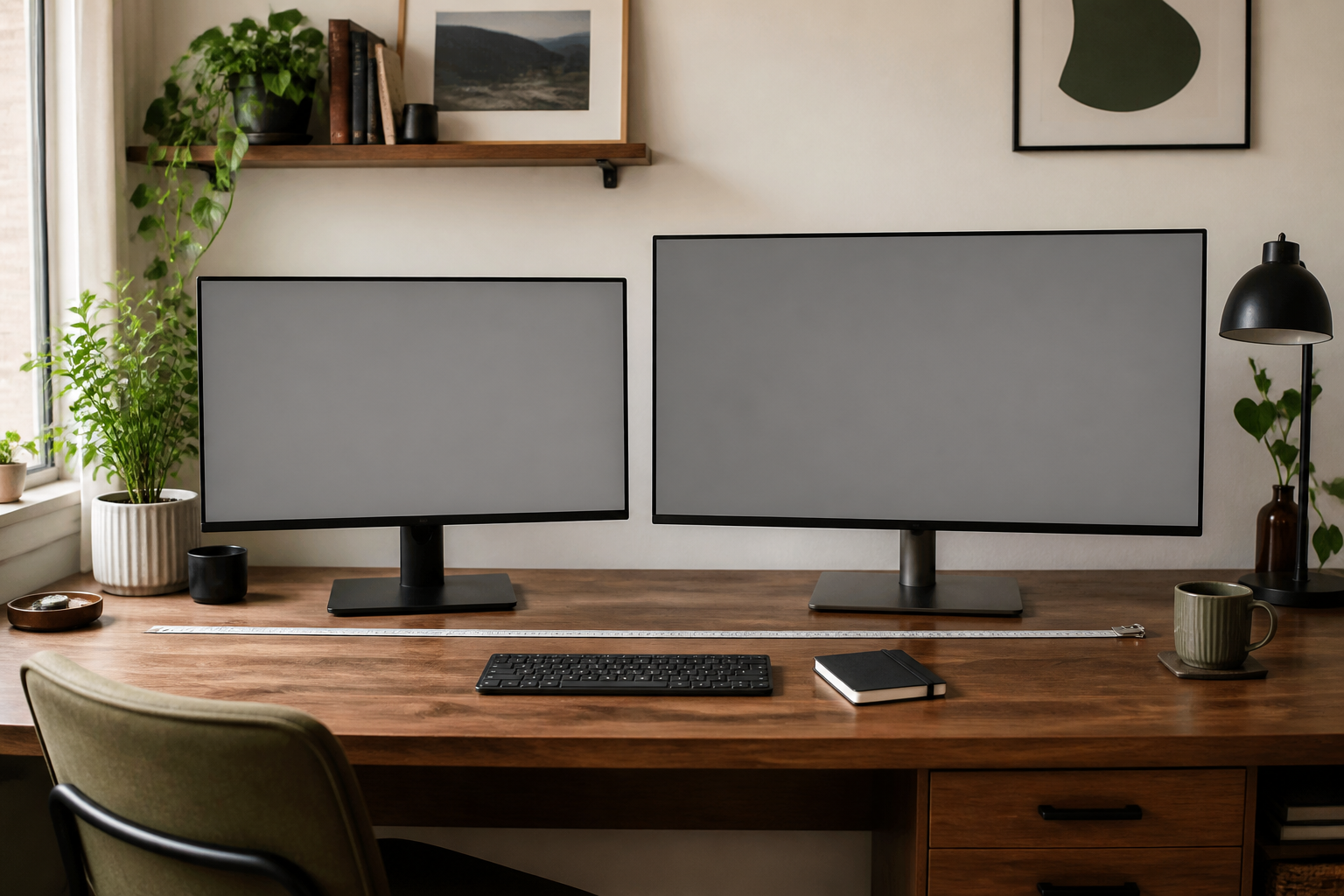
How much fits at 125%, 150%, 175% and 200%?
Both sizes can have the same 3840 × 2160 native pixels. Windows’ Scale setting changes how much of that grid an interface element occupies. Microsoft’s instructions distinguish scaling text and apps together from the separate Accessibility text-size control.
The table divides native resolution by the scale factor. “Logical workspace” means the area available for interface layout, before the taskbar and each application’s toolbars take their share. It is a calculated model for DPI-aware Windows apps at native 4K, not a change in the panel’s resolution.
| Windows scale | Calculated logical workspace | Space relative to 200% |
|---|---|---|
| 125% | 3072 × 1728 | 60% more width and height |
| 150% | 2560 × 1440 | 33.3% more width and height |
| 175% | About 2194 × 1234 | 14.3% more width and height |
| 200% | 1920 × 1080 | Reference |
For example, 3840 ÷ 1.5 = 2560. At 150%, both a 27-inch and a 31.5-inch 4K screen offer that same logical width. The larger monitor makes the interface physically larger; changing only the diagonal does not create another column of windows.
Similar text size, more room: 27 at 175% vs. 32 at 150%
Suppose a 27-inch 4K display at 175% gives you a useful text size, but two windows feel cramped. A 31.5-inch display at 150% is an interesting alternative because the two changes nearly cancel out for physical interface size.
For this comparison, use nominal 27.0- and 31.5-inch, 16:9 panels. Pixel density is √(3840² + 2160²) ÷ diagonal. One logical pixel then spans 25.4 × scale factor ÷ pixel density millimeters on the panel.
| Model assumption | Logical workspace | Physical span of one logical pixel |
|---|---|---|
| Nominal 27.0-inch 4K, 175% | About 2194 × 1234 | About 0.272 mm |
| 31.5-inch 4K, 150% | 2560 × 1440 | About 0.272 mm |
The second row gives 16.7% more logical width and height, or about 36.1% more logical area, at almost the same modeled physical UI size. Those percentages use the unrounded dimensions. They describe layout capacity, not measured glyph size, readable spreadsheet rows or a productivity gain.
This also explains the other choice. If you prefer a single large document and already have enough space, keep the same scale on the larger screen for bigger controls instead. If your present 4K monitor has the right physical size and only the interface feels wrong, changing Scale may solve the problem without a purchase.
What changes on a Mac or in older apps?
On a Mac, use System Settings → Displays and compare the available resolutions or larger-text/more-space choices. Apple’s guide explains these controls and notes that scaled resolutions can affect performance. The Windows percentages above are not macOS menu options or a guarantee of identical rendering.
On Windows, browser zoom and application text settings can change content size again. Microsoft’s DPI documentation also describes legacy apps that blur or size incorrectly when scaled. If an essential work app has that problem, preview that app at the intended setting: its behavior can outweigh the neat comparison in the table.
The larger panel adds about four inches of visible width
Calculated from a 16:9 rectangle, a nominal 27-inch panel is about 23.5 × 13.2 inches; a 31.5-inch panel is about 27.5 × 15.4 inches. The formula is width = diagonal × 16 ÷ √337, with 9 replacing 16 for height. These are visible-panel dimensions, excluding bezels and the stand. The roughly four-inch width difference is not a cabinet-clearance allowance.
Depth changes the decision too. A stand can place the screen forward of the desk’s back edge, so measure from your normal eye position to the intended screen plane. OSHA gives a general eye-to-screen range of 20–40 inches and recommends a screen directly ahead, with its top at or below eye level. It does not prescribe one diagonal for that entire range.
If a larger screen would sit close enough that you keep turning to reach its edges, a 27-inch display may be the more useful fit. If stand depth is consuming the available distance, the 24- versus 30-inch desk-depth guide separates the screen, keyboard and seating zones.
Two 4K models put the size difference in context
Dell’s U2725QE and U3225QE provide current reference points. Both belong to the UltraSharp 4K, 120 Hz Thunderbolt-hub family, keeping resolution and broad feature tier close while comparing sizes.
| Reference model | Size class | Native resolution | Dell’s published density |
|---|---|---|---|
| Dell U2725QE | 27-inch class | 3840 × 2160 | 163 PPI |
| Dell U3225QE | 31.5 inches, sold in the 32-inch class | 3840 × 2160 | 140 PPI |
The earlier geometry uses nominal dimensions, rather than exact Dell cabinet or viewable-area measurements. For an actual order, use the chosen model’s cabinet width and stand footprint. For a laptop, confirm it can drive 4K at the intended refresh rate through your connection; the docking-station guide covers that separate compatibility question.
Choose the size that solves your constraint
Choose 27-inch 4K when a compact viewing area or limited width matters most, and the scale you need already leaves enough room for your work. Choose 32-inch-class 4K when you have the physical room and want either larger controls at the same scale, or a lower scale that trades some of the size increase for more workspace.
For a current 27-inch owner at 175%, the 31.5-inch/150% example is a useful purchase question: would roughly 17% more room in each direction solve the cramped layout? If so, the size change has a concrete purpose. If your current layout works after adjusting scale, keeping the display is equally reasonable.
An arm may help with an awkward stand, but it introduces its own fit requirements. Before counting on that route, check monitor-arm compatibility for display weight and depth, VESA pattern, desk construction and reach.