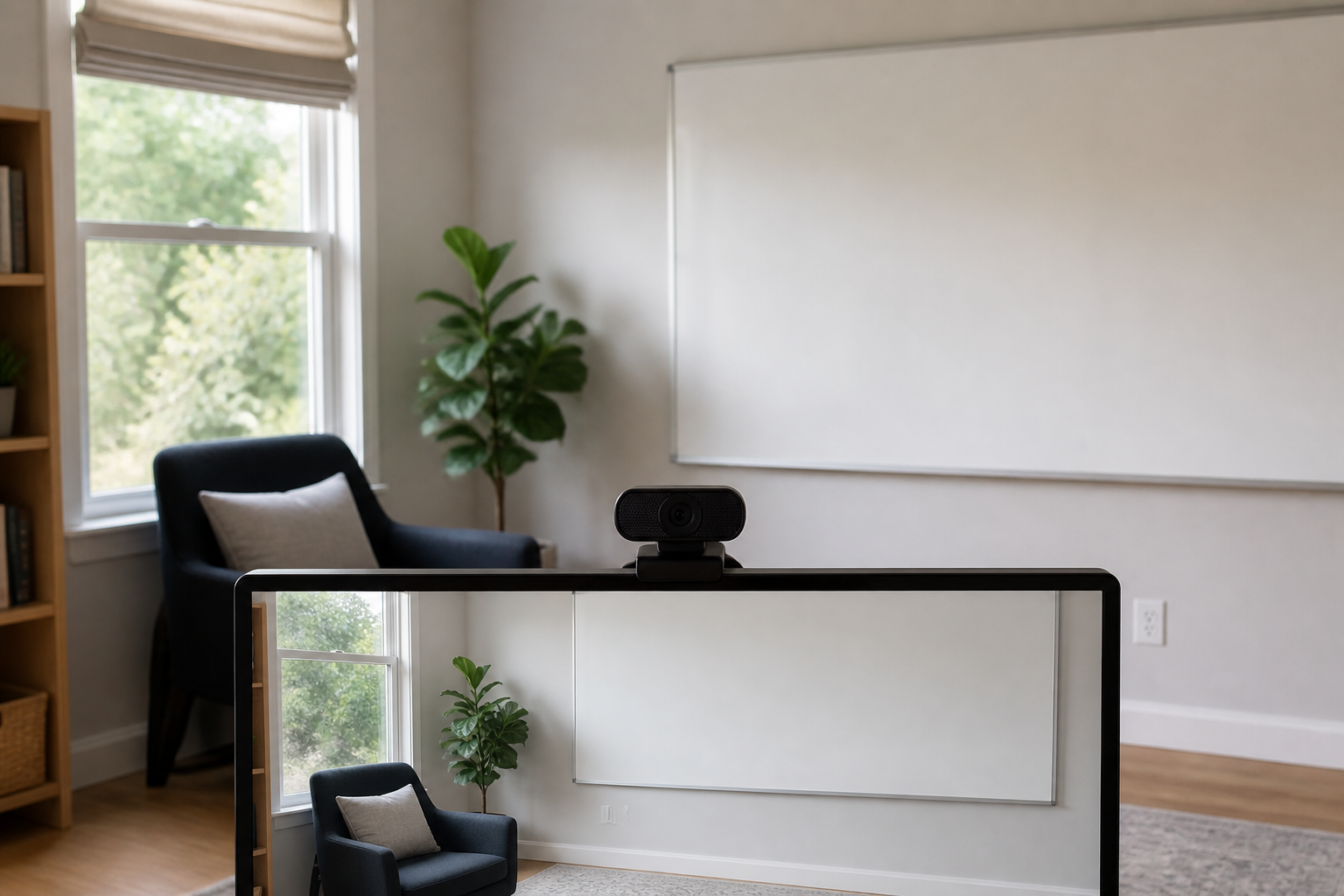
One question eliminates most of the webcam market: must the camera follow you, or will you stay inside one frame? A person seated for ordinary calls needs a dependable fixed view. A presenter who steps toward a whiteboard needs the frame itself to move. Paying for tracking when the chair is the only working position adds machinery and software without solving a new problem.
Resolution is a separate decision. A webcam may be able to capture 4K while the meeting platform sends a lower-resolution picture. Treat 4K as an input capability to verify against your actual computer, software, and call account—not as a promise about what another participant will see.
Before replacing the camera, give the current one a fair test
Use the preview in the application that hosts your real calls, on the computer and network you normally use. Put the lens near eye level, face the light rather than a bright window, and frame the head and shoulders at the distance you can maintain comfortably. Microsoft’s current camera setup guidance likewise recommends an eye-level camera and light from the front rather than strong backlighting (Microsoft Support).
Change one variable at a time:
- Raise or lower the existing camera until the angle is useful.
- Turn toward a window or place a diffused light in front of you.
- Close any beauty, background-blur, or auto-framing effect that makes the problem hard to identify.
- Make a test call or use the platform’s preview and note what still fails: framing, exposure, focus, motion, connection, or audio.
If placement and light fix the problem, keep the camera. If an integrated camera cannot reach the useful position, an external fixed camera has a job. If the image still needs deliberate control, or the frame must move while you present, that result points to a different class of upgrade.
A fixed frame is enough until the work leaves the chair
A fixed webcam records one field of view. Software may crop that picture, but the camera body stays aimed at the same place. This is the simpler path for seated calls and a controlled desk setup.
A tracking webcam adds physical movement. On the exact Insta360 Link 2, a two-axis gimbal pans and tilts as its tracking feature follows a person. That capability earns its place when movement is part of the presentation—not merely because tracking appears on a feature list.
| What happens during the call | Framing path | What the camera must do |
|---|---|---|
| You remain seated at one monitor | Fixed | Hold a useful field of view from the chosen mount. Tracking adds little. |
| You sometimes show an object on the desk | Usually fixed with a controlled downward angle | Confirm the mount can tilt to the desk and return to the face position without becoming awkward. |
| You stand, cross the room, or teach at a whiteboard | Physically tracked | Pan and tilt across the real presentation area, with a way to pause or bound tracking. |
| More than one person shares the desk | Fixed wide frame or group framing | Fit everyone at the actual camera distance; movement tracking is a different requirement. |
This guide uses three current models because they represent those different jobs: a simple fixed 1080p path, a fixed 4K path with manual controls, and a gimbal that can follow deliberate movement. It is not an image-quality ranking. The available independent reviews were not produced under one controlled method across all three cameras.
Three camera paths, separated by the job they perform
| Model and role | Published capture and framing facts | Connection and software boundary | The reason to choose it |
|---|---|---|---|
| Logitech Brio 100 Simple fixed calls | 1080p at 30 fps; 58.9° diagonal field of view; fixed focus; integrated privacy shutter. | Attached 1.5 m USB-A cable; Windows 10+, macOS 10.15+, and ChromeOS listed. | You need external placement, a physical shutter, and USB-A for one seated position; 4K modes, a wide adjustable view, and tracking are unnecessary. |
| Logitech MX Brio Controlled fixed 4K | 4K at 30 fps or 1080p at 60 fps; 90° field of view; manual image controls and a rotating privacy shutter. | Detachable USB-C cable; the support specification requires a USB-C port supporting USB 3.0; control software is for Windows and macOS. | You can name a use for the higher capture modes or want deliberate control over a fixed image rather than tracking. |
| Insta360 Link 2 Tracked movement | 4K at up to 30 fps or 1080p at up to 60 fps; 79.5° diagonal field of view; autofocus; two-axis gimbal; tracking, DeskView, and whiteboard modes. | USB-C cable with a USB-C-to-A adapter; magnetic mount with a 1/4-inch tripod point; advanced features depend on Link Controller and its system requirements. | Your presentation actually leaves the fixed frame, and physical pan-and-tilt will reduce manual reframing. |
The specifications in the table establish modes and compatibility, not comparative image quality. They come from the current Brio 100 support specification, the MX Brio support specification, and the manufacturer pages for the exact models.
Brio 100: external placement in a narrow fixed frame
The Brio 100 is the choice to examine when the useful camera position is separate from the laptop screen and the call still takes place from one chair. Its published 58.9° diagonal field of view is the narrowest of these three paths. That can keep a single seated participant prominent, but it is also a reason to measure the camera-to-chair distance before buying if two people must share the frame.
Fixed focus means the camera cannot deliberately refocus on a close object, so desk demonstrations are a poor reason to choose this model. The fixed 1080p/30 capture, attached USB-A cable, and privacy shutter establish placement and compatibility facts; they do not establish that Brio 100 will improve exposure, color, focus, or detail over the camera you already own. If visual quality remains the observed failure, this evidence does not settle the purchase. If external placement or a physical shutter is the job, confirm that the computer or dock has the needed USB-A connection and that the attached cable reaches the mount.
MX Brio: pay for fixed-image control, not a 4K badge
MX Brio keeps the camera physically fixed while adding 4K/30 and 1080p/60 capture modes, a wider published field of view, and controls in Logi Options+ or G Hub. Logitech lists adjustments for exposure-related settings, white balance, ISO, shutter speed, tint, and vibrance. Those controls matter when automatic settings repeatedly mishandle a stable room and you are willing to tune the result.
An independent TechRadar review of MX Brio found the settings quick to adjust in the reviewer’s basement office, while describing the downward desk mode as awkward and the microphone as less impressive than the video. That does not rank it against the other two cameras under matched conditions. It does make two checkout tests concrete: tilt the exact mount toward the part of the desk you intend to show, and keep a known-good headset available until the built-in microphone has passed a real call.
Choose MX Brio when you need a fixed camera and can identify the control or capture mode that will be used. If the actual call platform cannot send the desired resolution and you will leave every control on automatic, the extra modes may not change the meeting.
Link 2: choose the gimbal only for deliberate movement
The model name matters here. The current product page covers both Link 2 and the fixed Link 2C, while Insta360 now also sells newer Pro variants. The camera in this comparison is the exact Link 2 with a two-axis gimbal. The Link 2 product specification assigns physical tracking and the gimbal to Link 2; Link 2C uses fixed hardware with digital framing.
An independent TechRadar Link 2 review found its tracking and presentation features useful for classes, lectures, and board presentations, while noting that ordinary seated meetings may not need the feature set. That is the right boundary: map the floor area where you will move, confirm the camera can see it from the planned mount, and decide where tracking should stop before paying for a motorized frame.
Software support can eliminate this option even when the camera fits physically. Insta360’s current camera compatibility page lists Windows 10 or later, macOS 10.13 or later, and at least 8 GB of RAM, with higher requirements for some advanced features. Linux can use the camera through UVC/UAC, but Link Controller is not available there. The client-software documentation also says the camera can work as a standard webcam without Link Controller, while its virtual-camera feature does not support 50 or 60 fps. Check the exact feature you need, not just basic camera detection.
A 4K camera can still enter a 1080p call
The number on the webcam box is only one part of the path:
camera capture → USB connection → computer and camera software → meeting application → account and admin settings → network → recipient view
Google Meet provides a useful current example. Its video settings documentation lists 1080p as the maximum send resolution and limits that option by Workspace edition, browser, camera, and processing capability. A 4K input therefore does not make a Meet participant receive 4K video.
This does not make 4K capture useless. It makes the reason for buying it specific. Verify the higher mode if you will record locally, crop within a camera utility, use 1080p/60 for motion in a supported workflow, or need controls bundled with that model. For ordinary calls, open the current documentation for the actual platform and account before treating resolution as the deciding axis.
The checkout test includes the mount, cable, software, and microphone
A webcam is a short signal path, and any part of it can rule out a model. Check these items with the exact computer and desk arrangement:
- Mount and sightline: confirm the monitor bezel can hold the mount without covering the screen or blocking vents. If a light already occupies that edge, use the fit checks in our monitor light bar versus desk lamp guide. A monitor arm must also remain balanced with the camera and cable through its real movement; see the monitor-arm compatibility guide.
- Connection: Brio 100 uses an attached USB-A cable. MX Brio uses USB-C and calls for USB 3.0 support. Link 2 includes a USB-C cable and USB-A adapter. If a dock sits between the camera and laptop, compare the host path, port capability, and cable reach with our docking-station compatibility guide.
- Software policy: decide whether camera utilities, virtual-camera drivers, background processing, and firmware updates are allowed on the work computer. Basic UVC operation does not guarantee that every advertised control is available on every operating system.
- Audio: use the microphone and speaker arrangement that already works as the baseline. A built-in webcam microphone is convenient, but these sources do not provide one controlled audio comparison across all three models.
- Privacy: Brio 100 and MX Brio publish physical privacy shutters. For any camera, also check whether employer policy permits its software and whether the operating-system camera indicator and permissions behave as expected.
- Return test: after purchase, repeat the same preview or call used for the old camera. Keep the camera only if it fixes the named failure without creating a mount, cable, software, or audio problem.
Choose the least complicated camera that solves the observed failure
For one seated participant who needs external placement, a physical shutter, and an attached USB-A connection, Brio 100 is the straightforward fixed 1080p route; it is not established here as a visual-quality upgrade over an existing 1080p camera. MX Brio makes sense when the camera will remain fixed but a verified 4K/30 or 1080p/60 workflow, wider framing, or manual image control has a job to do. Link 2 earns its motorized gimbal when a presenter deliberately moves beyond one frame.
If none of those capabilities answers a problem you observed in the real call path, keep the existing camera. The useful decision is not which specification is largest; it is which single change survives the complete test from lens position to the other participant’s screen.