A laptop stand changes two positions at once: the screen rises, and the attached keyboard and trackpad move with it. That can improve the screen position while making the built-in controls too high, steep, or far away. Once that happens, a separate keyboard and pointing device are part of the stand setup—not an optional upgrade for later.
Before comparing products, decide whether the laptop will stay open as a display or close beside an external monitor. Those are different workstation plans. A portable riser, an adjustable desktop stand, and a vertical closed-lid holder do not solve the same problem.
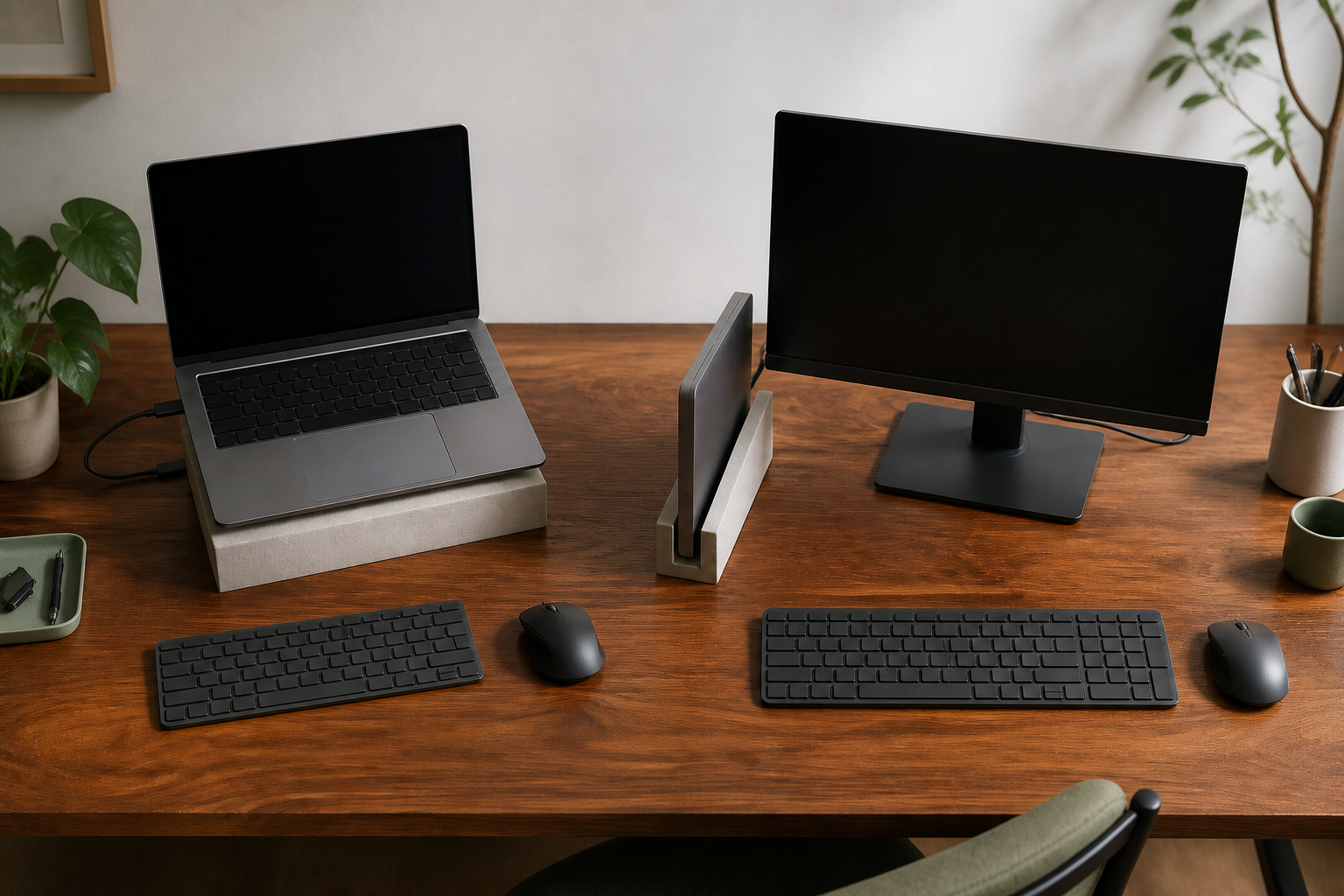
Raising the screen changes the input-device plan
OSHA’s monitor guidance treats display placement as part of the whole workstation. It suggests keeping the screen directly in front, with the top at or slightly below eye level, and using a viewing distance that lets you read without leaning. Its keyboard guidance puts the keyboard directly in front, with relaxed shoulders, elbows close to the body, and wrists in line with the forearms. The pointing device must remain within that same easy reach.
A laptop hinge fixes the distance between those two components. Raise the laptop until the screen is useful, then test the built-in keyboard and trackpad without reaching toward the stand or bending the wrists upward. If both screen and input guidance cannot be met at the same height, leave the laptop on the stand as a display and put a separate keyboard and mouse or trackball at the workable input height.
This is a placement decision, not a medical claim. OSHA’s working-position overview also recommends changing position rather than treating any single posture as permanent. A stand can create adjustment range; it does not establish that one position will prevent pain or injury.
The right stand depends on whether the laptop stays open
Choose the use mode before the model. The component dependencies become much clearer when each route is written as a complete setup.
Open, raised screen
on a standReachable external
keyboardMouse or
trackball
A low wedge may leave the built-in controls usable. At a screen-focused height, separate inputs complete the setup.
Closed beside a display
in a vertical standExternal
displayExternal
input devices
Add the cable or dock, power state, and charging connection required by the exact laptop. The vertical holder is not a display riser.
If none of the three routes works as a complete chain, the useful answer is no stand yet. An external monitor may solve the screen problem without raising the laptop, while an input-surface problem belongs in the keyboard-tray guide.
Portable, adjustable, and closed-lid paths
These three current products represent the three setup modes. They are not a best-to-worst ranking: the specifications establish size, adjustment, and intended use, but they do not provide comparable evidence about comfort, stability on every desk, hinge life, or durability.
| Product and role | Published facts that change fit | Inputs and display plan | What remains to verify |
|---|---|---|---|
| Roost V3 Portable raised-screen route | Maker lists 11 height settings, 6–11 in of elevation, 6 oz weight, and folded dimensions of 1.30 × 1.17 × 13 in. | Laptop stays open; plan on carrying a separate keyboard and pointing device at raised settings. | The exact laptop must sit securely in the pivoting grips, and the chosen setting must fit both screen distance and available desk depth. |
| Twelve South Curve Flex Adjustable desk route | Maker lists laptops at least 8.66 in wide and up to 7 lb; stand is 10.4 in wide, 8.8 in deep, 1.18 in high folded, and 1.75 lb. | A low wedge and a raised-screen position are different input tests. Use separate inputs once the built-in keyboard and trackpad cannot stay in the workable position. | Exact laptop width and weight, screen height at the chosen hinge setting, desk footprint, and hinge tension. |
| Twelve South BookArc Flex Closed-lid external-display route | Maker lists a 1 in maximum laptop thickness and dimensions of 2.2 × 3.6 × 8.43 in. Its page currently gives conflicting 14- and 16-in screen-size language, so diagonal alone is not a sufficient fit check. | Laptop is closed; external monitor, keyboard, and pointing device are required, along with the power state or charging connection the exact laptop requires. | Exact physical fit, upright placement, laptop closed-lid support, cooling instructions, display support, power behavior, and cable routing. |
Roost V3: the route for a workstation that travels
Roost V3 earns its place when the laptop screen must be raised in more than one location and the entire usable workstation can travel. The current product page publishes a 6 oz stand that closes to 13 in long, which makes the packed stand easy to quantify. It does not tell you whether carrying a keyboard and pointing device fits your trip or whether a particular laptop feels secure in the grips.
Set up the complete travel kit on the smallest surface you expect to use. The screen needs enough distance, and the separate inputs need enough depth to remain close. If the only available surface forces the keyboard in front of its edge or puts the screen too near, a compact folded stand has not produced a compact working setup.
The manufacturer describes broad laptop compatibility, but a universal phrase is not a model-specific fit result. Check the exact laptop’s front-edge thickness, shape, ports, vents, and grip contact before the return window closes. This guide has no comparable hands-on stability test for Roost V3, so it does not rank the stand’s steadiness against the two Twelve South routes.
Curve Flex: adjustment is useful only if the desk has room for it
Curve Flex can move between a low wedge and a raised desktop screen position. Its published 10.4 × 8.8 in footprint belongs in the desk plan before the separate keyboard and pointing device are added.
The maker lists a 0–45° keyboard-angle range. Do not treat the full range as an instruction to type on the built-in keyboard; test whether the wrists, elbows, and reach still work at the actual setting. At screen-focused heights, separate inputs resolve the conflict instead of asking one hinge angle to position both screen and keyboard.
The included hex tool is also a maintenance fact, not evidence of permanent stability. Twelve South’s current hinge-tension instructions say the four internal tension screws can be tightened evenly if the joints loosen. Check all four joints, the laptop hinge, and the desk contact with your own equipment before relying on a raised configuration.
A current Tom’s Guide hands-on comparison makes that adjustment step concrete for its tested Curve Flex unit. Before the reviewer tightened the four hinges, pressure from the reviewer’s wrists and a 3 lb laptop lowered the stand; after adjustment with the included tool, it held the tested load. The reviewer also observed movement at the laptop and desk contact points during side-nudge checks. Those results do not predict every laptop or surface, but they turn “check stability” into a useful checkout test: adjust all four hinges, set the intended height, and nudge the actual laptop gently from more than one direction before deciding to keep the stand.
BookArc Flex: choose it only after closed-lid mode already works
BookArc Flex does not raise a usable laptop display. Its job is to hold a closed laptop vertically beside an external display. That makes it the most compact-looking route and the one with the longest compatibility chain.
First prove that the laptop can drive the intended display while closed, in its required power state, and connected to the external keyboard and pointing device. Check the laptop maker’s instructions for closed-lid operation and cooling; some computers or workflows may require external power or may not permit the intended orientation. Then confirm whether a direct cable, hub, or dock supplies the right display protocol, resolution, refresh rate, and any required charging power. The laptop-docking-station guide provides a worksheet for that chain.
Only then measure the stand fit. The current BookArc Flex page is internally inconsistent about maximum screen diagonal, while consistently publishing a maximum thickness of 1 in. Use exact laptop dimensions and the owner’s manual rather than a diagonal-size shortcut. Route cables so their connectors are not carrying the laptop’s weight, and place the computer straight in the stand as the maker instructs.
Verify the whole desk chain before buying
Use the setup you actually intend to keep, not the cleanest product-page arrangement.
- Name the laptop mode. Keep it open for its screen or camera, or close it only after its external-display behavior is proven.
- Record exact fit. Compare laptop width, thickness, weight, edge shape, vents, ports, and case against the selected stand’s current manual and specification.
- Place the inputs. Put the keyboard and pointing device where the elbows can stay close and the wrists can remain straight. If the stand occupies that area, it does not fit the desk plan.
- Build the closed-lid chain. Confirm display protocol and limits, power, operating-system behavior, dock or cable, and cooling instructions for the exact laptop.
- Test the physical setup. Check grip contact, laptop hinge movement, stand joints, desk friction, screen distance, cable strain, and stability with the actual equipment. None of the three stands was tested for this article.
- Check current purchase terms. Availability, included parts, returns, and warranty can change; review them on the direct manufacturer page at checkout.
The bounded shortlist is straightforward. Put Roost V3 on it when a raised open screen and separate inputs must travel together. Put Curve Flex on it when one desk needs real height and angle adjustment, the complete footprint fits, and the hinge-and-contact test passes. Put BookArc Flex on it only when the laptop will remain closed and the external-display, input, power-behavior, and physical-fit checks already pass. If separate inputs or closed-lid compatibility are unresolved, keep the laptop off the stand until the missing part of the setup is settled.