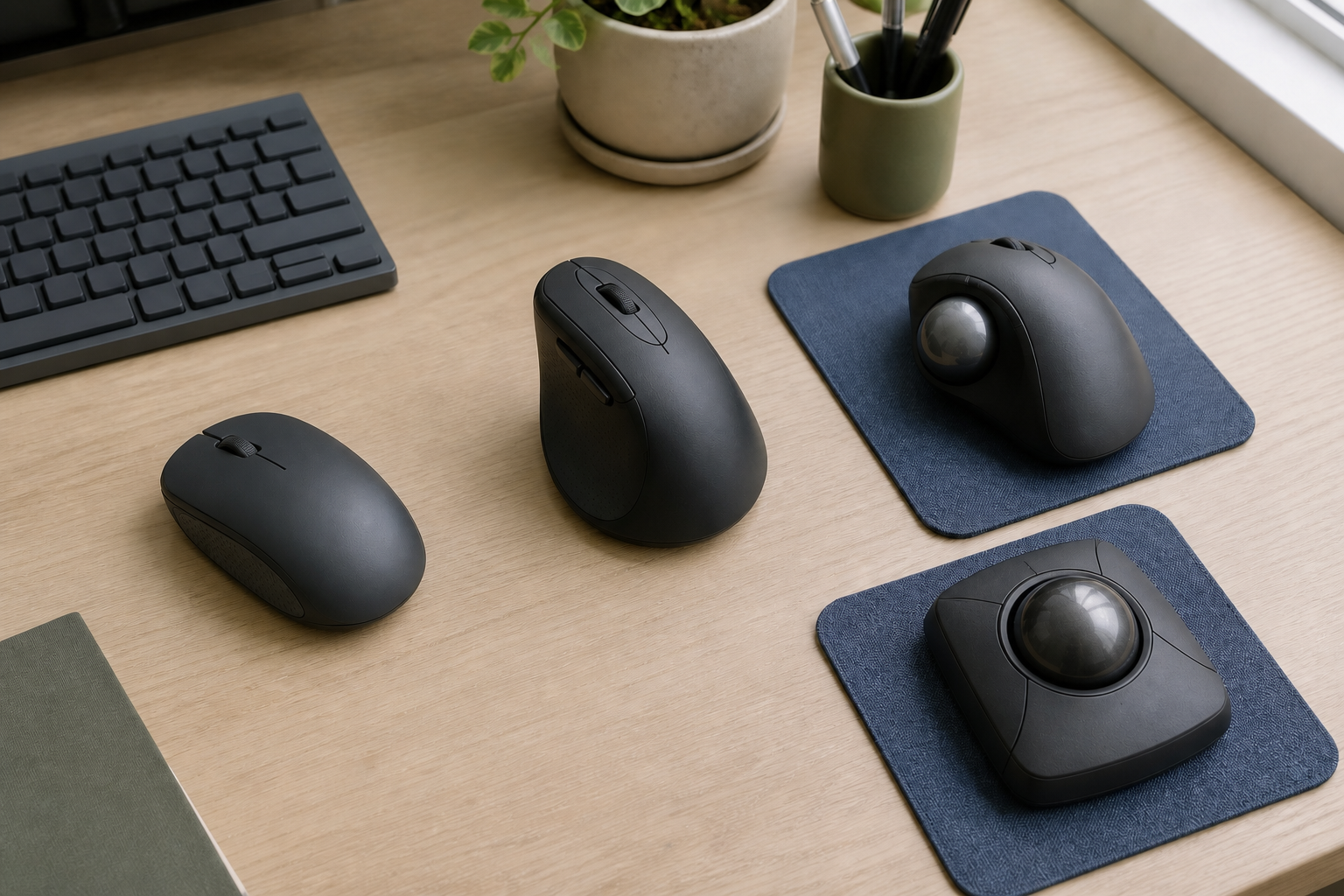
If a work mouse feels wrong, changing its shape is only one possible fix. The mouse may be the wrong size, it may sit too far from the keyboard, or its sensitivity may force more desk movement than the task needs. Identify that failure first; otherwise a vertical mouse can preserve the same reach problem in a taller shell.
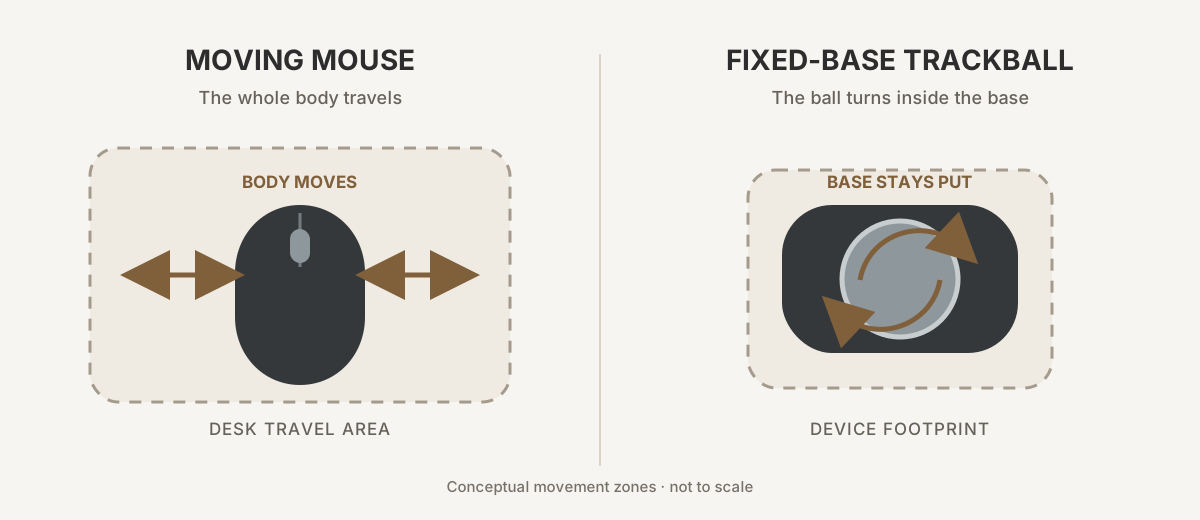
The defining difference is where pointer movement comes from. A regular mouse and a vertical mouse both travel across the desk. A trackball normally stays put while a thumb or fingers turn the ball. That one distinction changes surface area, operating hand, repeated motion, and the amount of relearning more than the word “ergonomic” does.
Before changing shape, keep the pointer close to the keyboard
OSHA’s pointer guidance recommends keeping the pointer close to the keyboard, selecting a size and shape for the hand that operates it, adjusting sensitivity, and trying a device before long-term use. Its purchasing guide likewise makes task requirements, user ability, hand fit, and preference the choice—not a universal form-factor ranking.
Give the current mouse one controlled setup test before buying:
- Place it beside the part of the keyboard you actually use, on the same level, without reaching around a number pad or tray edge.
- Adjust pointer speed until the cursor can cross the working display without repeated lifting or a tight grip.
- Run a representative point, text selection, long drag, and scroll task.
- Write down what remains: hand-size mismatch, reach, movement area, misses, grip force, or a task the controls cannot support.
If moving the pointer closer or changing sensitivity resolves the failure, keep the current mouse. A narrower keyboard or a better-sized keyboard tray may be the more direct purchase when the pointer has nowhere reachable to sit. If the unresolved problem is motion source, hand fit, or handedness, compare form factors.
A vertical mouse still needs room; a trackball keeps its base put
The three form factors divide into two motion systems:
| Form factor | What moves the pointer | Surface consequence | Adaptation question |
|---|---|---|---|
| Regular moving mouse | The hand and arm move the whole device. | Needs a usable travel area beside the keyboard; sensitivity changes how much. | Can a better size or closer position solve the problem without changing technique? |
| Vertical moving mouse | The hand and arm still move the whole device while the hand rests at an angle. | Needs travel area much like another moving mouse. | Can you point, lift, and recenter the taller shape without gripping harder? |
| Thumb trackball | The base stays still while the thumb turns the ball. | Needs only the device footprint, not a sweep area. | Does repeated thumb control suit pointing, selection, and long drags in your work? |
| Finger trackball | The base stays still while one or more fingers turn a central ball. | Also removes sweep area, though the body itself may be wide. | Can either hand reach the ball, buttons, and scroll control without awkward repositioning? |
A trackball can solve a surface constraint without proving that it will be faster or more comfortable. A vertical mouse can change hand orientation without solving a cramped tray. Keep those promises separate.
Left hand, small hand, large hand: “ergonomic” is not a size
Handedness can eliminate a product before any subjective trial. A sculpted right-thumb trackball is not a left-hand path. A symmetrical finger trackball can support either hand, but its button positions and wide footprint still need testing. A vertical mouse may be sold in separate right- and left-hand versions rather than one reversible shell.
Dimensions also describe a body, not a fit verdict. Use them to compare against a mouse you already know, then check the maker’s hand-size positioning:
- The Signature M650 specification lists the regular M650 at 108.2 × 61 × 38.8 mm and the M650 L and M650 L Left at 118.7 × 66.2 × 42 mm. Logitech’s current US product page positions the regular size for small-to-medium hands, the L for larger hands, and the L Left for left-handed use.
- The Lift specification lists 108 × 70 × 71 mm. The current US product page positions Lift for small-to-medium hands and offers separate right- and left-hand types.
- The MX Ergo S specification lists 132.5 × 99.8 × 51.4 mm. Its US product page positions it for medium-to-large hands, but it remains a right-thumb design.
- Kensington’s current K72359WW support page identifies an ambidextrous, finger-operated design but does not publish body dimensions there. Measure the available footprint from the exact seller’s current listing or try the device rather than filling that gap with an estimate.
A short study of three roughly 50–60° slanted mice and one small horizontal reference found that usability varied with the relationship between device size and participant hand size under its pointing, steering, and dragging tasks (PubMed). That supports treating size as a live trial variable. It does not establish a best angle or predict all-day comfort for the four products here.
Long drags and tiny targets expose different compromises
Do not trial a new pointer by browsing for five minutes. Use the operations that create real friction:
| Work operation | What to record | Why it can change the choice |
|---|---|---|
| Point and click repeated targets | Misses, corrections, and whether grip pressure rises | An unfamiliar motion may look acceptable until repeated acquisition reveals control effort. |
| Select text across several lines | Lost selections and unwanted clicks | Button force and pointer control must work together while the button stays held. |
| Drag an item across the screen | Drops, recentering, and which body part repeats the motion | Moving mice may need lifting; trackballs may concentrate a long drag in the thumb or fingers. |
| Scroll a long document or timeline | Overshoots, hand repositioning, and control reach | A wheel, thumb motion, or scroll ring can fit different workloads. |
| Use frequent shortcuts | Missing buttons, accidental presses, and software dependence | Custom controls help only when the work computer permits the required app and the mapping is reliable. |
A 2022 design study compared prototypes with commercial horizontal, slanted, and vertical mice in short graphical tasks, including usability and muscle-activity measurements for 20 participants (PubMed). It shows that geometry can change measured task behavior and muscle activity under controlled conditions. It did not include trackballs, test these four named products, or establish injury prevention, treatment, long-term comfort, or productivity.
That leaves the important result in your hands: performance on the same workload after basic familiarization.
Four current candidates represent four different trial paths
These are not ranked from least to most ergonomic. Each represents a distinct branch that can be eliminated by motion area, operating hand, size, connection, or task fit.
| Current example and role | Motion and fit boundary | Connection and controls | Choose it for a trial when… |
|---|---|---|---|
| Logitech Signature M650 — lower-adaptation baseline | Moving mouse; small-to-medium, large, and large left-hand variants | Bluetooth Low Energy or Logi Bolt; five main buttons; Options+ customization on Windows and macOS | Familiar movement still works and the likely failure is size, side, placement, or sensitivity. |
| Logitech Lift — angled moving mouse | 57° moving shape; small-to-medium positioning; separate left option | Bluetooth Low Energy or Logi Bolt; six buttons; Options+ for software features | You want to test a different hand angle while retaining whole-device movement. |
| Logitech MX Ergo S — right-thumb fixed base | Fixed-base right-thumb control; medium-to-large positioning; 20° tilt | Bluetooth Low Energy or Logi Bolt; eight controls, six customizable; USB-C charging | Desk sweep area is the constraint and right-thumb control survives the task trial. |
| Kensington Expert Mouse Wireless K72359WW — ambidextrous finger ball | Fixed-base finger control; ambidextrous body | Bluetooth LE or 2.4 GHz USB receiver; four customizable buttons and a scroll ring | You need a fixed base without committing to a right-thumb design, or want an either-hand path. |
The table uses published shape, connection, and control facts. It does not turn manufacturer comfort language into a comparative result. Prices, stock, colors, return terms, operating-system versions, and warranties can change; verify the exact variant and seller terms at checkout.
Signature M650 tests whether correct size is enough
The M650 is the conservative branch: keep conventional mouse motion and change fit before changing technique. The current M650 page offers regular, large, and large left-hand variants, plus Bluetooth Low Energy and Logi Bolt connectivity. Its support specification lists five main buttons and Logi Options+ support on Windows and macOS. That combination is useful only if you choose the intended size and side; “M650” alone is not a complete variant.
Trial it against the current mouse at the same pointer speed and placement. If the correct size reduces unwanted gripping while pointing and dragging remain familiar, a more radical form-factor change has no extra job to do. If sweep area or hand orientation remains the named problem, move to another branch.
Lift changes the angle, not the movement area
Lift keeps the moving-mouse control model but changes the shell to a published 57° angle. The exact US Lift page offers a left type as well as the standard type and positions the model for small-to-medium hands. The support specification lists Bluetooth Low Energy, Logi Bolt, six buttons, and Logi Options+ support.
The useful trial question is not whether 57° sounds ergonomic. It is whether the taller body can be lifted, recentered, clicked, and dragged without extra grip force on the available surface. A larger hand may also outgrow the model’s published positioning even if the angle sounds appealing.
MX Ergo S trades desk travel for right-thumb control
MX Ergo S keeps its base in place and uses a right-side ball. Logitech’s US page for model 910-007247 lists a 20° tilt, six customizable buttons, a pointer-speed button, and USB-C charging. The official specification adds Bluetooth Low Energy and the included Logi Bolt receiver.
That makes it a coherent trial when the desk cannot spare a sweep area and the operating hand is the right hand. It is not a left-hand substitute, and a thumb ball should not be treated as equivalent to finger control. Pay particular attention to long drags, fine text selections, and repeated scrolling; those tasks reveal whether concentrating pointer motion in the thumb is workable.
Kensington Expert Mouse preserves a fixed-base left-hand path
The official K72359WW support page lists finger operation, an ambidextrous fit, four customizable buttons, a scroll ring, Bluetooth LE, a 2.4 GHz USB receiver, Windows/macOS/ChromeOS support, AA power, and a limited three-year warranty.
Its role is not to beat the thumb trackball. It keeps the fixed-base option open for left-hand use and moves pointer control from the thumb to one or more fingers. Confirm that the wide body fits beside the keyboard and that the button and ring layout remain reachable with the chosen hand. Software availability and basic device support are also different questions: make sure the work computer permits the customization software if remapped buttons are part of the plan.
Test the same five tasks—then decide what to return
An unfamiliar device needs enough practice that you can operate its basic motion before measuring it, but there is no universal adaptation period that proves a poor fit will improve. Keep the comparison bounded by the seller’s current return and condition rules.
Use this protocol:
- Record a baseline with the current mouse: misses, dropped drags, task time, unwanted grip force, and the desk area used.
- Set up the candidate for the same computer, display arrangement, pointer speed goal, and operating hand.
- Practice until basic pointing, clicking, scrolling, and dragging no longer fail simply because the control is new.
- Run the same point, selection, drag, scroll, and shortcut sequence twice without changing settings midway.
- Keep the candidate only if it fixes the named failure without creating a worse task or compatibility problem.
Do not collapse the notes into “felt ergonomic.” A useful result is specific: the base stayed inside the available footprint; long drags stopped at the screen edge; text-selection misses increased; the left-hand variant fit; a required button mapping was unavailable. Those observations tell you whether to keep, return, or test the next branch.
Numbness or weakness needs advice, not another shape promise
A pointing device can change fit, reach, hand orientation, and the part of the hand that repeats motion. This comparison cannot diagnose a symptom or establish that one product prevents injury or treats pain.
If pain persists, or if you notice numbness, weakness, or loss of function, stop treating the problem as a shopping comparison and seek guidance from a qualified clinician or workplace ergonomics professional. Bring the task notes and workstation setup with you; they are more useful than a claim printed on a mouse box.
For a bounded purchase decision, start with the smallest change that answers the observed failure. Keep a regular moving mouse when corrected size and placement are enough. Trial a vertical moving mouse when hand angle is the variable. Trial a trackball when fixed-base control solves a real surface constraint, then choose thumb versus finger operation and operating hand. The winner is the device that survives the same work—not the form factor with the strongest promise.