A second screen on the road is useful only if the laptop can connect to it, the work device permits the connection, and the complete setup fits the table and bag. An iPad or Galaxy tablet you already own may be the lowest-effort answer. A dedicated portable monitor may give you a simpler physical display path. Sometimes one laptop screen is the better mobile system.
Make that choice in this order: name the window that needs to stay visible, test any supported tablet you already own, verify the laptop’s video or wireless-display path, and then measure the stand, cable, power, sleeve, and bag as one setup.
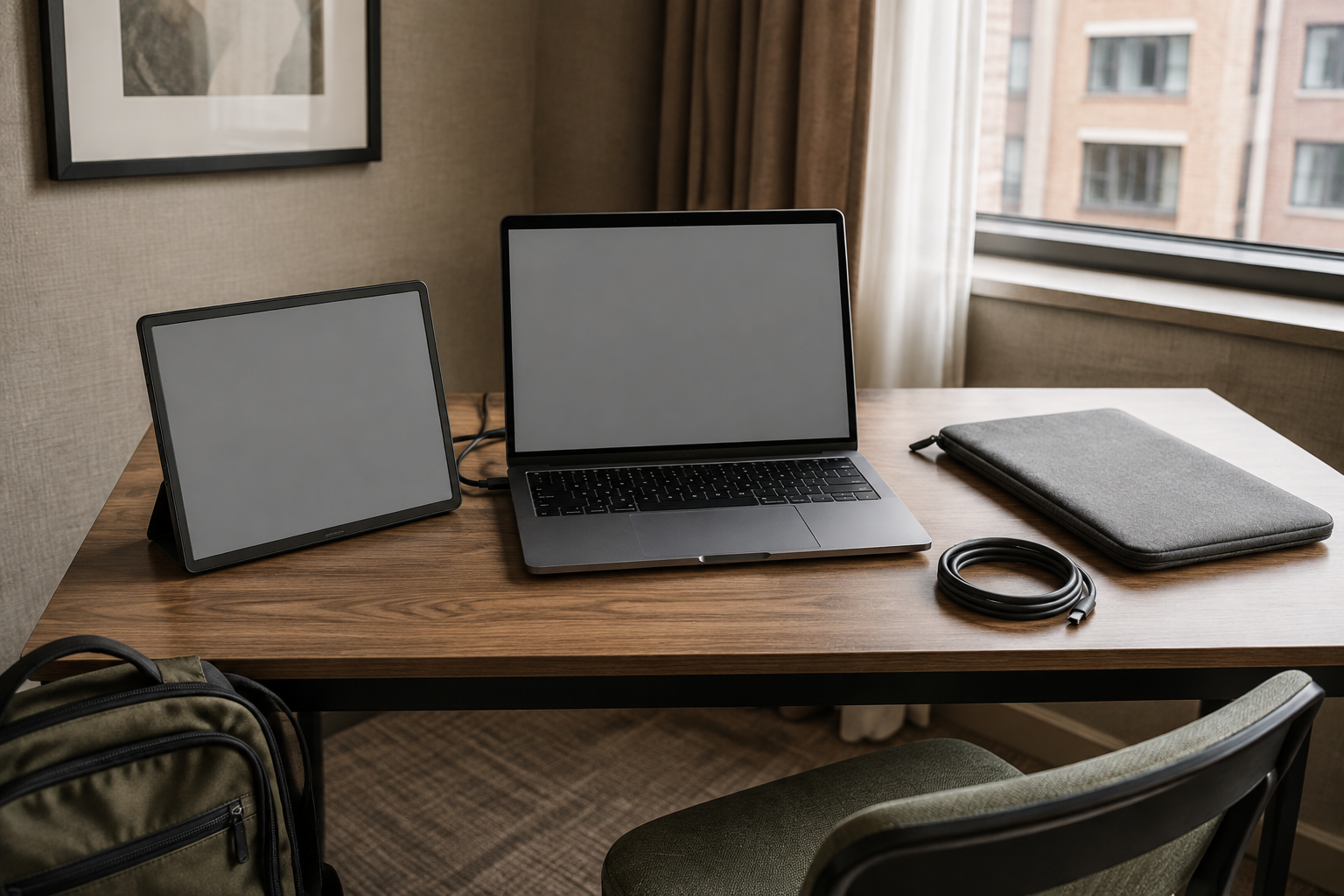
Name the window that earns a second screen
Start with a job, not a device class. Write down the one view that should remain visible while you work on the laptop: a reference document beside a draft, a call beside notes, a preview beside controls, or another real pairing. Then try that pairing on the laptop you will carry.
The second screen has not earned a place if you still spend most of the session on one full-screen application, if both windows become too small to read, or if setup and packing take longer than the saved switching. Window snapping and virtual desktops may make one screen sufficient without adding hardware, power demand, or a support surface.
Before choosing a route, record the exact laptop model and operating system, any existing tablet model, work-device restrictions, available ports, the smallest likely table, charger access, and the usable space and weight in the real bag. These are checks, not assumptions about how or where you travel.
Use one screen
virtual desktops
Choose this when the second view does not earn its setup time, power, or carried space.
Reuse an iPad
and accountSupported iPad
through Sidecar
Test this before buying when the exact Mac, iPad, account, operating systems, and policy qualify.
Reuse a Galaxy tablet
with Wireless DisplaySupported Galaxy tablet
through Second Screen
This is a documented wireless-display path, not a promise that every Windows PC and Galaxy tablet pair will work.
Carry a portable monitor
software, and powerMonitor, cable,
stand, and sleeve
Buy only after the exact host-to-display path and the physical travel setup both close.
If the mobile setup is becoming a permanent workstation, leave this decision. The ultrawide-versus-dual-monitor guide covers fixed-desk canvas layout, while the 27- versus 32-inch monitor guide covers screen size, viewing distance, and scaling at a regular desk.
Test the tablet before shopping for another panel
An owned tablet is not automatically a laptop display. It becomes one only through a supported connection path, and that path may depend on operating systems, accounts, wireless features, software installation, and employer policy.
Apple Sidecar: verify both devices and the account
Apple’s current Sidecar support page says Sidecar can extend or mirror a Mac desktop on a compatible iPad. It also publishes the supported Mac and iPad generations and requires both devices to use the same Apple Account with two-factor authentication. Wireless use has additional Bluetooth, Wi-Fi, Handoff, distance, and connection-sharing conditions; USB use requires the iPad to trust the Mac.
That makes Sidecar the first reuse test for a qualifying Mac-and-iPad owner. Check the exact model and operating-system version against Apple’s current list rather than relying on the age or connector of either device. On a managed Mac, confirm that account sign-in, Handoff, wireless display use, or USB trust is allowed before treating the route as available.
Sidecar’s input behavior is also specific. Apple documents Mac control from the Mac’s keyboard, mouse, or trackpad and supports Apple Pencil for pointing and compatible drawing or editing actions. Do not turn “the iPad has a touchscreen” into a general promise that every Mac interface will behave like an iPad app.
Samsung Second Screen: verify the tablet series and Windows host
Samsung’s current Second Screen instructions list the Galaxy Tab S7, S8, S9, and S10 families running One UI 3.1 or later, paired with select PCs that support Wireless Display and run at least Windows 10 version 2004. Samsung recommends keeping the devices close and on the same Wi-Fi network, and documents Extend, Duplicate, and Second screen only modes once connected.
Use that list as a gate, not as a category-wide claim. Confirm the exact tablet, Windows version, Wireless Display support, network permission, and work-device policy. Samsung documents touch navigation from the tablet in this path, but latency, connection stability, battery use, and application behavior still need to be tested on the actual pair.
If an existing tablet passes these checks, run the real window pairing before buying anything. If it fails because the models are unsupported, policy blocks the feature, or the actual session is not usable, remove the route from the shortlist. This guide does not substitute an unreviewed third-party display app for an unsupported official path; those apps add their own driver, security, subscription, and support decisions.
USB-C is a connector shape, not a display promise
A dedicated monitor shifts the question from ecosystem support to a complete signal path. For a native USB-C video connection, the laptop port must send the display protocol the monitor accepts, the cable must carry that signal, and the source must provide enough power or the setup must supply power another documented way. A USB-C port used only for data or charging does not gain video output because a monitor cable fits it.
Check the laptop manufacturer’s specification or manual for the exact port. Look for an explicit display capability such as DisplayPort Alt Mode or a documented Thunderbolt display path, plus the supported display count, resolution, and refresh rate. If a dock or adapter sits between the laptop and screen, every link must support the intended output; the laptop docking-station compatibility guide shows how to audit that chain.
Windows can arrange, extend, duplicate, and change settings for connected displays, but Microsoft’s multiple-monitor instructions begin after the display and cables are connected. Operating-system controls do not establish that a particular USB-C port, adapter, dock, or cable can carry video.
ZenScreen MB16ACV makes the dedicated-display checks concrete
The ASUS ZenScreen MB16ACV is a useful representative, not a universal winner. ASUS currently documents the model as a 15.6-inch, 1920 × 1080 portable display with one USB-C input. Its technical specifications identify that input as DisplayPort Alt Mode and USB 3.2, publish a 0.9 kg (1.98 lb) estimated net weight, dimensions of 35.8 × 22.5 × 1.0 cm (14.09 × 8.86 × 0.39 inches), a fold-out tilt range, and a quarter-inch tripod socket.
The model also shows why “one cable” needs a footnote. ASUS’s MB16ACV overview says the USB-C connection carries power and video on compatible devices, while its USB Type-A route requires a DisplayLink driver. The current user guide tells a user whose computer only has USB 3.0 Type-A to install the official driver first and lists both USB-C-to-C and USB-C-to-A cables plus a case in its package contents. Bundle contents can vary by region, so confirm the exact US listing rather than treating that manual as a checkout inventory.
The Type-A route may be irrelevant on a managed laptop that prohibits the driver. The native USB-C route may be unavailable when the host port lacks DisplayPort Alt Mode or sufficient power. Neither limitation proves that the monitor is poor; it shows that the exact host and policy choose the viable path.
| Route | Must be true before you rely on it | Hardware to place and carry | Test that can eliminate it |
|---|---|---|---|
| One laptop screen | The required window pairing remains usable through switching, snapping, or virtual desktops | Laptop and its normal charger | A real session causes repeated loss of essential context |
| Apple Sidecar | Exact Mac and iPad support, current OS versions, same-account requirements, policy, and the chosen wireless or USB conditions all pass | Laptop, iPad, supports, and a charging or USB plan | The actual apps are unreadable, unstable, blocked, or awkward at the available scale |
| Samsung Second Screen | Exact supported Galaxy tablet, compatible Windows Wireless Display host, current software, network, and policy all pass | Laptop, tablet, supports, and chargers as needed | The actual wireless session is unstable, delayed, blocked, or too small for the assigned window |
| Dedicated portable monitor | Laptop video output, accepted monitor input, cable or driver, power, resolution, and display count are documented end to end | Monitor, stand, signal cable, power items, sleeve or case, and laptop | No supported signal path exists, or the complete setup does not fit the table or bag |
A thin panel still needs a footprint
Screen thickness is not desk fit. Measure the temporary surface you actually expect to use and place the laptop first. Add the secondary screen at the side where its assigned window is readable, then include the stand’s front-to-back depth, cable bend, safe edge clearance, and room for the input devices you need.
For a tablet route, measure the support or keyboard case in its working position, not the bare tablet. For a portable monitor, use the cabinet and stand dimensions from the exact manual. The MB16ACV’s published cabinet is about 14.1 inches wide, but that number does not describe the space its kickstand, cable, or an optional tripod base will occupy. It also does not establish stand stability on a tray, soft surface, or moving table.
Set both displays to the intended operating-system scale and open the actual applications. A nominal resolution or diagonal does not tell you whether remote-desktop text, fixed-size controls, video-call panels, or a document at the needed zoom will remain usable. Portrait orientation can reduce width for a document or chat window, but software support, stand position, and cable routing must still work in that orientation.
Count the cables and case, not just the display
Build a packing list for the route as it will travel:
- the second display or tablet;
- its stand, cover, or keyboard case;
- the signal cable and any adapter or dock;
- the laptop and display charging plan;
- a protective sleeve or rigid space in the bag; and
- any policy-approved driver or account setup that must survive sign-out, updates, and sleep.
Weigh those items together if carried mass matters. Then load them into the real bag and check pressure points, connector protection, and whether the display can be removed without unpacking everything else. A quoted panel weight is not the packed weight.
Power deserves its own dry run. A bus-powered display draws from the host unless the documented setup supplies power elsewhere. A tablet may begin with a battery but still need charging through the session. Do not estimate runtime from the device labels: use the real laptop, screen brightness, applications, connection method, and charger access for a timed session.
Move one real work session onto the second screen
The final decision is an acceptance test, not a specification score. While the return window is still open, reproduce the session that justified screen two and record the result.
- Connect from a cold start using only the items in the travel kit. Time the setup and confirm that work-device policy permits every step.
- Open the assigned window pair at the scale and orientation you intend to use. Read and interact with both for a full work block.
- Sleep and wake the laptop, disconnect and reconnect once, and test the actual call, remote desktop, design, document, or browser workflow.
- Note connection stability, visible delay, text size, viewing position, stand movement, cable strain, and battery change as observations about this setup—not universal product claims.
- Pack the complete kit into the measured bag, then set it up on the smallest realistic surface.
Keep the tablet route when it passes and the tablet has enough value outside this one task to justify carrying it. Keep a dedicated monitor when the physical connection is documented, the setup remains usable, and the extra panel, cable, support, protection, and power plan all fit. Return to one screen when neither route earns its friction.
There is no need to buy a tablet mainly to imitate a monitor before comparing the tablet’s wider cost and uses. There is also no reason to buy a portable monitor merely because its connector fits. The best outcome is the smallest verified setup that keeps the window you named visible where you actually work.