An ultrawide and two monitors can both hold several work windows, but they organize those windows differently. One gives the main task an uninterrupted center. The other gives each screen its own position, full-screen state, and physical boundary.
Before comparing monitor models, list what must remain visible at the same time. Then mark one window as primary. That small map can reveal that you need one wide canvas, a centered main display with a side display, or simply the laptop screen beside one external monitor.
Draw the windows before you count the monitors
Write each always-visible application on a card or sticky note and arrange the cards as you would during one representative task. Do not include windows you are content to switch to. Three arrangements usually expose the real choice:
- One central task with tools beside it: a continuous ultrawide can keep the main window centered while placing narrower tools on either side.
- One main task plus an independent secondary screen: dual monitors let the secondary panel turn inward, rotate, or stay full-screen while the primary display remains unchanged.
- Two windows, with one used less often: the laptop display plus one external monitor may already provide the required separation without a second large display.
Now identify where a physical seam would land. If it divides the main window, either place one dual display directly ahead and accept an asymmetric secondary panel, or test a continuous canvas. If the seam separates two roles cleanly—such as a full-screen work surface and a reference screen—it can be useful rather than merely tolerated.
This map is also the stop condition. If one external display and the laptop panel can hold the two roles at comfortable sizes, neither a 34-inch ultrawide nor two 27-inch monitors has yet earned desk space.
3440 × 1440 is not two 4K screens without a seam
Diagonal inches do not describe usable desktop. Native resolution tells you the physical pixel grid; operating-system scaling and application zoom determine how much interface fits legibly on that grid.
A 3440 × 1440 ultrawide contains about 5.0 million pixels. Two 3840 × 2160 displays contain about 16.6 million pixels in total. The pair therefore offers much more native pixel area, but it also divides that area between two panels and will often need more scaling because the pixels are packed more densely. That is not a controlled test of seam versus no seam: topology, total pixels, and pixel density all change together.
Use the numbers as a feasibility check, not a productivity score. On a screen you already own, set the scaling and text size you can read comfortably, open the applications from your map, and record the resulting logical workspace. Windows can arrange apps into predefined regions with Snap layouts, but a zone manager cannot create pixels or make an application usable at a smaller text size.
If you are still deciding whether one 4K display is enough, resolve 27 versus 32 inches, viewing distance, and scaling before adding a second panel to the question.
Put the main window ahead—then decide where the bezel belongs
The primary task should determine the viewing position. OSHA’s monitor guidance advises placing the monitor directly in front and at least 20 inches away. Its workstation evaluation checklist places the primary monitor ahead and the others directly beside it, or both next to each other when use is divided evenly.
That creates two legitimate dual-monitor layouts:
- Center the primary panel on your body and angle the secondary panel beside it. The seam moves away from the center, but the complete setup becomes asymmetric and wider to one side.
- Center the seam and angle both panels inward. The setup becomes visually balanced, but no uninterrupted panel sits directly ahead.
An ultrawide avoids the center bezel and provides one window-management surface. It does not decide the best viewing arc, text size, or application layout. A curved 34-inch panel still provides geometry, not proof that the edges will feel equally easy to view from your chair.
Use painter’s tape or paper to mark the screen rectangle at the intended distance. Sit in the normal working position and move the application cards across that rectangle. This is more informative than imagining “more screen space” from a diagonal number.
Two USB-C ports do not promise two external displays
Check the exact computer model before shopping for either reference setup. The connector shape alone does not establish how many display streams the computer supports, at which resolutions and refresh rates, or through which dock path.
Apple’s current external-display setup guide directs Mac users to the exact model’s Display Support or Video Support specification. Follow the equivalent manufacturer specification for a Windows PC. Record four facts:
- the supported number of external displays;
- the maximum resolution and refresh rate for each planned output;
- whether the outputs remain available through the intended dock or daisy chain; and
- which cable standard each link requires.
One ultrawide normally needs one native external display stream. Two native extended displays normally need two streams even when one cable reaches a dock or the first monitor. A dock can route supported native video; it cannot be assumed to add display engines the computer does not expose.
A software-assisted DisplayLink dock is a separate branch when native outputs are insufficient. Synaptics provides DisplayLink USB graphics drivers for Windows; on macOS, the DisplayLink Manager setup guide requires its app and Screen Recording permission to send pixels to the USB peripheral. That makes the dock, software, operating system, and planned applications a separate compatibility check rather than a native-output substitute. The docking-station compatibility guide shows how to trace both paths without treating a USB-C label as the answer.
Do this check with the laptop lid in the state you intend to use. Treat “laptop plus two” and “two with the laptop closed” as separate configurations until the exact computer specification confirms both.
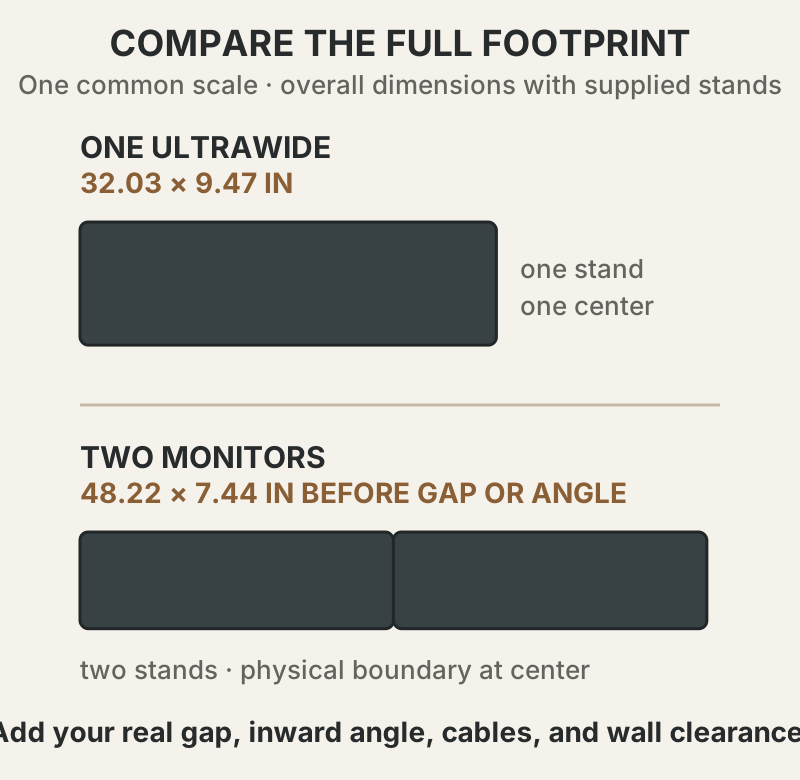
Tape the full width to the desk, including both stands
Screen width is only the front edge of the fit problem. Mark the overall cabinet width, stand depth, screen plane, and the chair’s normal position. For dual monitors, add a real gap and the extra depth created when the panels angle inward. Also reserve the outlets and cable paths the final layout requires.
The supplied stands make a conservative first template because they show whether the setup works before an arm becomes a prerequisite. If you plan to use an arm, verify each panel’s VESA pattern and weight without its stand, then check the arm’s load range, reach, tilt behavior, and clamp fit. The monitor-arm compatibility guide covers that separate load path.
Do not use the diagram above to approve the desk. It compares published overall widths, while a real layout changes with bezel gap, panel angle, stand position, wall clearance, and the distance from your eyes to the screen plane.
One canvas, two independent panels, or one screen you already own
Two current Dell configurations make the geometry concrete without turning this into a brand ranking. Dell’s US pages listed both exact models when checked on August 31, 2026. The specifications establish dimensions and connections; they do not establish comparative comfort, reliability, picture quality, or productivity.
| Reference configuration | Native canvas | Published size with supplied stand | Published weight with stand | Host requirement | Decision role |
|---|---|---|---|---|---|
| One Dell U3425WE | 3440 × 1440, 21:9, 110 PPI | 32.03 in wide × 9.47 in deep | 23.83 lb | One output at the intended resolution and refresh rate | One uninterrupted center with one physical stand |
| Two Dell U2725QE monitors | 2 × 3840 × 2160, 163 PPI per panel | 2 × (24.11 in wide × 7.44 in deep); 48.22 in combined width before a gap or angle | 31.12 lb combined | Two supported native streams, or a separately validated software-assisted path, at the intended settings | Independent panels with a movable center boundary |
| Laptop display plus one external | Depends on the two displays already available | Measure the open laptop and one stand | No second large monitor to add | One supported external stream | The lower-complexity stop when two visible roles already fit |
Choose the U3425WE reference path when the uninterrupted central canvas survives your application map, host-output check, and 32.03-inch desk template. The U3425WE official page also lists picture-by-picture and a KVM switch, but treat those as exact multi-computer features to verify with your planned inputs—not as proof that it replaces every dock or standalone KVM.
Choose the two-U2725QE reference path when independent full-screen panels or separate angles matter enough to justify two native streams—or a deliberately validated software-assisted path—a bezel boundary, and at least 48.22 inches of cabinet width before spacing. The U2725QE official page lists a DisplayPort output and a Thunderbolt 4 downstream connection, but the host and operating system still have to support the intended extended-display chain.
Keep the laptop-plus-one-external path when it passes the same window map. Buying fewer panels is a successful result when the existing arrangement preserves the primary task and the host or desk would otherwise force a compromise.
Test sleep, sharing, and full-screen apps before the return window closes
Official specifications cannot predict the behavior of your exact computer, operating system, cable, dock, firmware, webcam, and applications. Once the setup arrives, repeat the task map before the seller’s return period ends:
- Wake the computer from sleep several times with every planned cable and peripheral attached.
- Confirm the intended resolution, refresh rate, scaling, and window positions after reconnecting.
- Put the main application full-screen and check what happens to the other zones or panel.
- Share one application, one panel, and the whole desktop in the meeting software you use.
- Place the webcam where eye line and framing still work with the chosen center.
- Switch every planned computer and input, including USB peripherals, if PBP or KVM behavior matters.
The decision is complete when one topology survives all four constraints: the required windows fit, the exact host can drive them, the full physical setup fits the desk and viewing position, and the real software behavior works. If none survives, keep the simpler display arrangement and revisit the specific failed constraint rather than buying more pixels around it.